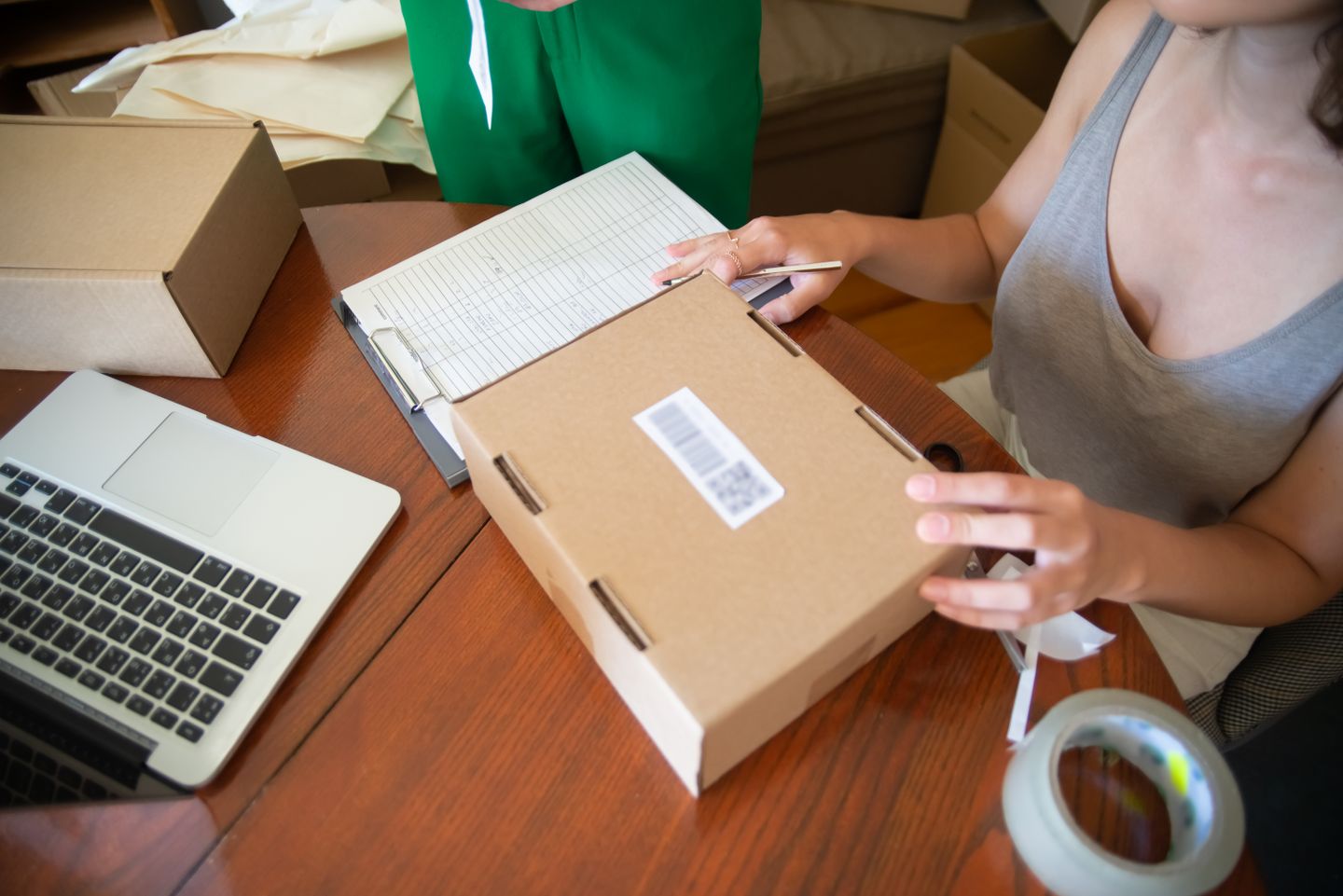

Selstack is a platform for creators and businesses to build a public selling page, share individual offers, accept supported payments and bookings, and manage the resulting orders and customer details. A “Stack” is a selling page. This guide explains the relevant workflow and the seller’s responsibilities; payment methods, account requirements and some features depend on the business configuration and plan.
A physical product offer must tell the customer exactly what they are buying and give the seller enough information to fulfil it.
Follow the workflow
- Step 1: Choose Physical product and enter the product name, price and selling currency.
- Step 2: Add real images, available variations, dimensions or materials where relevant.
- Step 3: Collect only necessary delivery and contact information through the supported fields.
- Step 4: Explain dispatch timing, delivery coverage, returns and what the customer sees after payment.
Confirm the result
Test each variation, total amount and delivery instruction before publishing.
Important: Pause or unpublish the offer when stock is unavailable rather than accepting an order you cannot fulfil.
Troubleshoot and get help
Take note of the business name, page, time and any non-sensitive reference or safe error message. Contact Selstack support without sending passwords, one-time codes, identity information, full bank details or card information.
How physical products work in Selstack
A physical-product link combines the offer, the customer’s order information and the configured delivery or collection choices. The public description explains what is being sold; the shipping setup determines which addresses can be served and what the customer will be charged. These parts need to agree. A sentence promising worldwide delivery does not create worldwide shipping coverage. Likewise, a product photograph does not communicate size, quantity or suitability on its own. The seller remains responsible for stock, packaging, dispatch, collection and resolving problems after the order is placed.
Describe the item before promoting it
Start with the exact product name, quantity, variant and what is included. State relevant dimensions, materials, compatibility or care requirements in ordinary language. If an image shows several items but the price covers only one, explain that clearly. Separate demonstrable facts from claims about results. Use photographs you own or are permitted to use, and show the actual item wherever possible. A stock photograph can illustrate a general article, but it should not be presented to a buyer as proof of the product they will receive.
Prepare a practical product page
Choose Physical product in the selling-page editor, enter the description and price, and review the customer-facing preview. Arrange the media so the first image makes the offer recognisable and later images answer useful questions. Put essential terms in text as well as any packaging image. Check what the action button says and whether the customer understands that an order will create a delivery obligation. If the item is not ready for sale, keep it in draft or unavailable rather than relying on a private message to correct the public offer later.
Configure the areas you actually serve
Add an active shipping area or a pickup location before publishing a physical offer. Shipping areas can be limited by country, state or region, city and postcode prefixes where appropriate. Use worldwide coverage only when the business genuinely has a workable delivery process for every destination it accepts. Review the delivery fee and estimated timing for each area. Collection needs a usable location and clear instructions about when and how the customer can receive the item. Test the available options with representative addresses before sharing the offer widely.
Explain payment timing accurately
For eligible paid physical products, Pro and Growth sellers can offer online payment, pay on delivery, or both. Pay on delivery means the seller collects the money directly; Selstack does not charge a transaction fee for that direct collection. An order placed this way is not evidence that the customer has already paid. The business needs a reliable collection and confirmation process. Online payments follow the applicable checkout and fee rules. Explain payment timing in the description and customer messages so delivery staff and buyers know what remains due.
Plan quantities and preparation time
Do not promote more units than the business can supply. For made-to-order products, distinguish preparation time from the carrier’s delivery estimate and explain any choices the customer must approve. For a limited release, decide what happens when available stock is exhausted before launching the campaign. For a bundle, list every included item and make substitutions explicit. Review prices against the real costs of materials, packaging, delivery arrangements and handling. The public promise should remain achievable even when several customers order within the same short period.
Collect information that helps fulfilment
Use the order’s customer name, email, phone and delivery details for the legitimate fulfilment task. Ask for information that resolves a real requirement, such as a building instruction or a product option, rather than collecting unrelated personal data. Keep delivery details attached to the correct order and avoid copying them into public comments or shared documents unnecessarily. If information is missing, contact the customer through the business’s established support route. Never request a password or payment-card security code to arrange a delivery or collection.
Keep the customer informed after purchase
Use the recorded order as the reference when preparing the parcel and answering questions. Check what was ordered, the payment status and the selected delivery method before dispatch. Give an honest update if preparation or delivery changes, including the next expected update and any appropriate options. Do not mark an order as delivered simply because it has been handed to a carrier. For pay-on-delivery orders, record payment only after the seller has actually collected it, and keep that distinction clear when reviewing the order later.
Review the complete experience
After a few orders, compare the promise on the selling page with what customers experienced. Look for repeated questions about quantity, delivery areas, collection or payment timing. Improve the page where those questions first arise. Retain enough fulfilment evidence to handle a legitimate complaint, while limiting access to customer information. If an item becomes unavailable, pause it promptly and communicate with customers whose orders are affected. A professional physical-product operation depends on the consistency between the page, checkout, dispatch process and the item that arrives.
Review Selstack pricing for current plans and online payment fees. For related tasks, visit the Help Centre. If the recorded result remains unclear, contact support with the relevant safe reference.